Here's how to register for the Members Portal Online Account
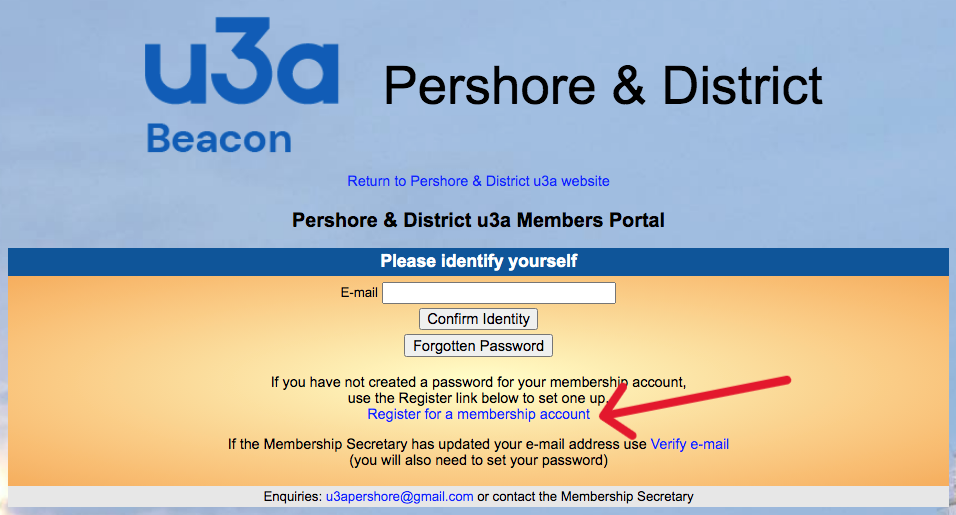
- Click the Members Portal link on the button above.
- In the “Please identify yourself” box, click “Register for a membership account”.
- Enter all the requested details and press “confirm identity”. The details you enter must match those on our u3a database. If you see “Not Found” try these fixes:
- use a full or shortened version of your first name
- check your postcode
- if you’ve recently updated your email, contact our Membership Secretary
- If the details match, you’ll be prompted to set a password. Follow the instructions to enter it twice and press “Update Account”.
- If successful, a message will confirm an email has been sent to you.
- Check your inbox, click the link in the email and access the Members Portal. You must do this within one hour, or you will need to reset your password.
Here's how to update your details if you already have portal account :

- Click the Members Portal Link on the button above
- Enter your email in the “Please identify yourself” box and click “Confirm Identity”.
- Enter your password when prompted and press “Confirm Identity” again.
- If successful, your name and membership number will appear. Click on the blue text “Update your personal details”.
- Review the “About Yourself” section and update any incorrect details. To save, click “Update Personal Details” at the bottom of the box.
- To log out, click “Return to Pershore & District u3a website” at the top of the page.
If you have forgotten your password, or your reset link has expired:
- Click the Members Portal link on the button above
- Click “Forgotten Password”.
- Enter your email and click “Reset Password”.
- A green banner at the top of the screen will confirm a reset link was sent.
- Check your email for a message from noreply@u3abeacon.org.uk and click the reset link.
- Create a new password, confirm it, and press “Change password”.
- You can now log in to the Members Portal.